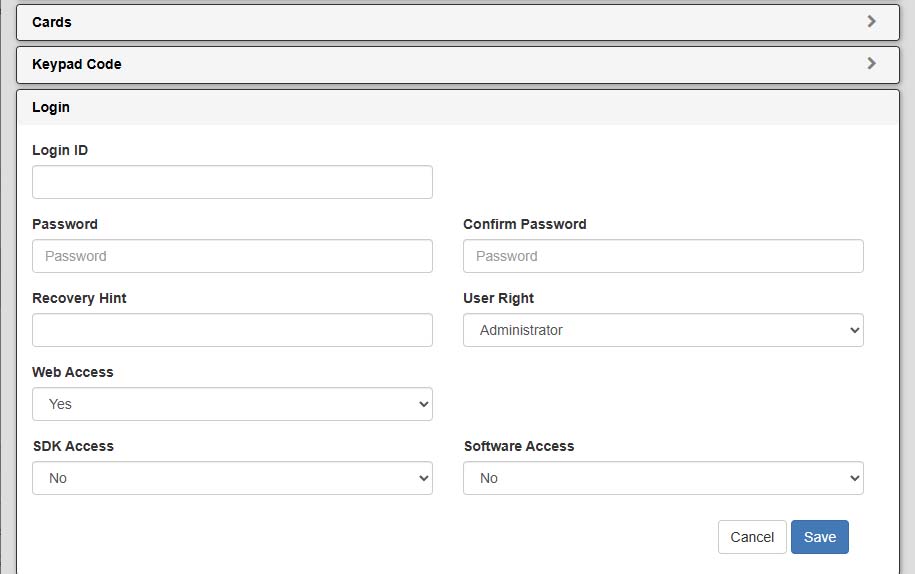
Create a New User (card holder)
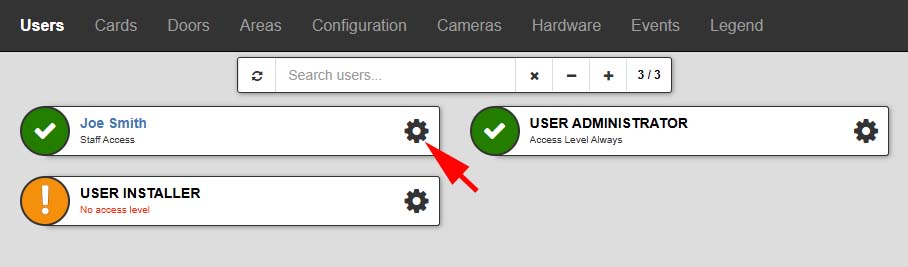
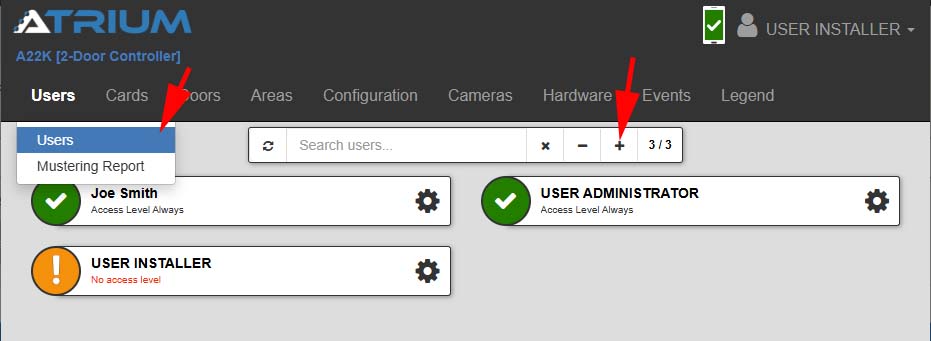
1. Select Users then Users from the top menu
2. Click the + Icon to create a new User (card holder)
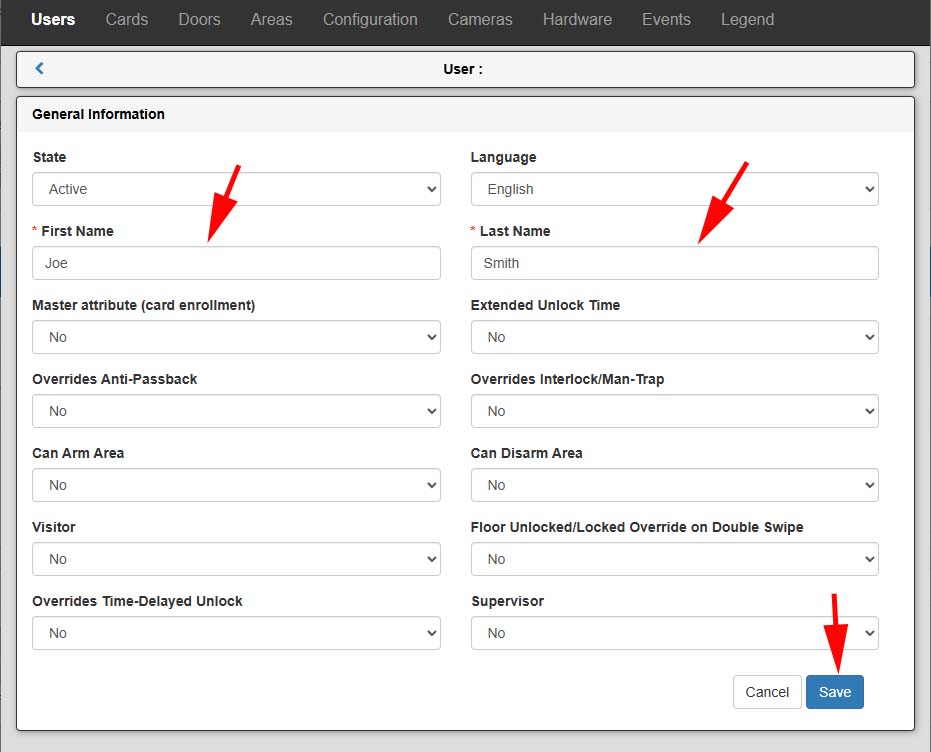
3. Fill in the User’s First Name and Last Name, then click Save
Note that there are several advanced options that are not covered by this tutorial.
Also note that only the first part of the first and last name are searchable. This is important to understand when adding users. If you want to search by last name and unit number, for example, you should use the First Name field for last name first then first name then use the Last Name field for the unit number. This will enable you to search by last name or unit number.

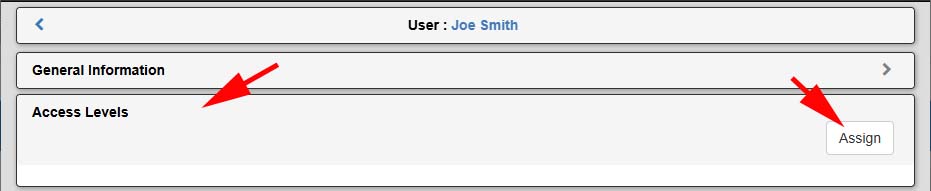
4. Select the Access Level tab to expand the section, then select Assign
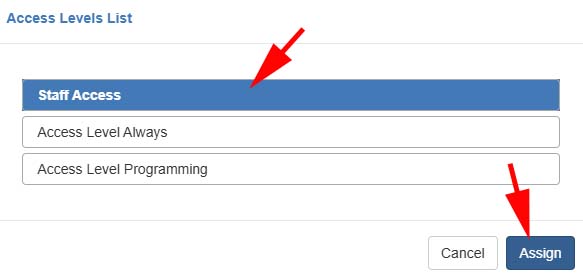
5. Select the desired Access Level then select Assign
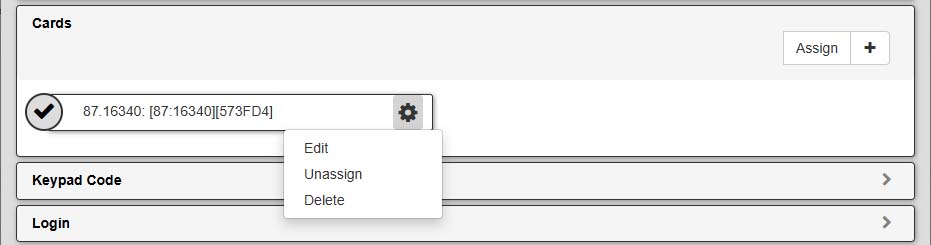
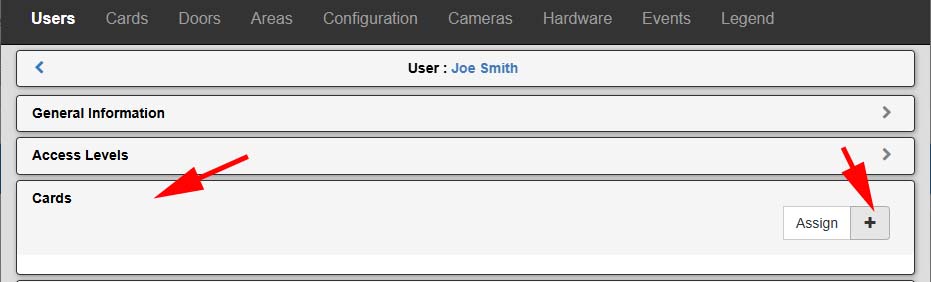
6. Select the Cards tab to expand the section then click the + icon to add a new card
Note that you can click assign instead of the + (add) icon if you already have a card in the system. You would then select the card instead of adding one here.
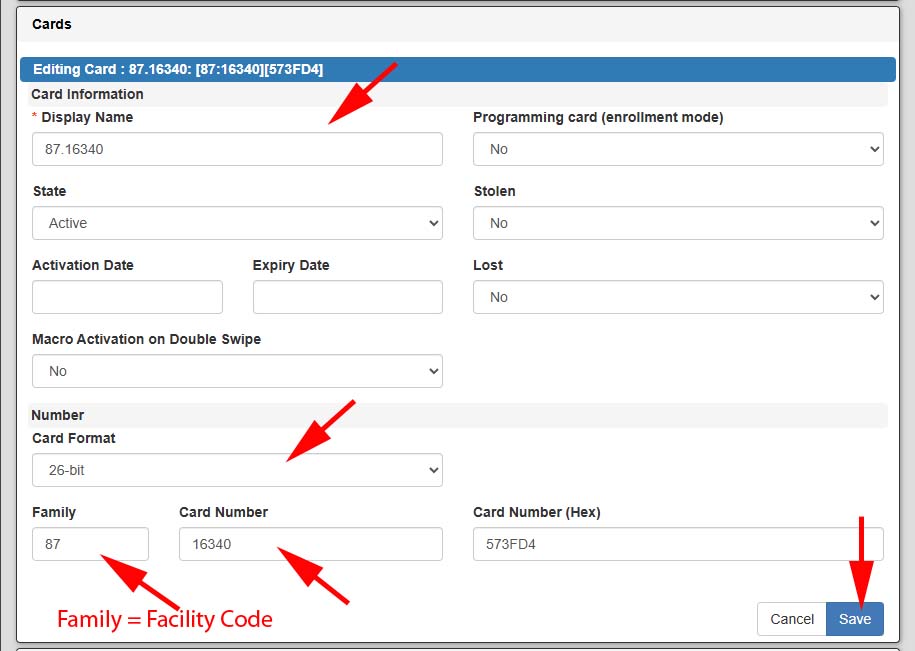
7. Enter the Display Name. The Display Name is the name you see when you see the Card in the system. It is recommended that you enter the facility code and card number for the Display Name so that it is easy to identify and easy to transfer in the future.
8. Select the Card Format. Verify your facilities card format. For most facilities it will be 26-bit.
9. Enter the Facility Code (Family). The facility code is most often not on the card but on the box. If you don’t know the card number and/or facility code you can present the card to a reader then select Events from the top menu and you will see the card read with the facility code followed by the card number
10. Enter the Card Number, then select Save.