Creating a Schedule
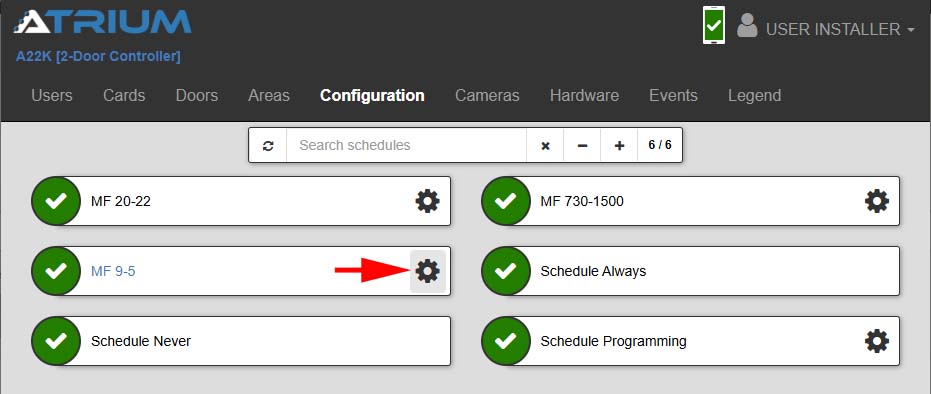
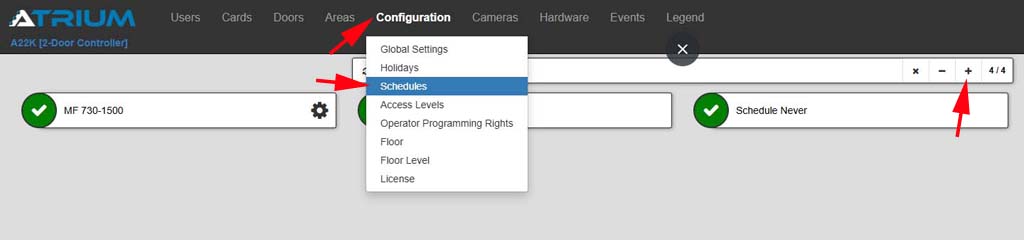
1. Select the Configuration menu, then select Schedules
2. Left-click the + icon to start a new schedule
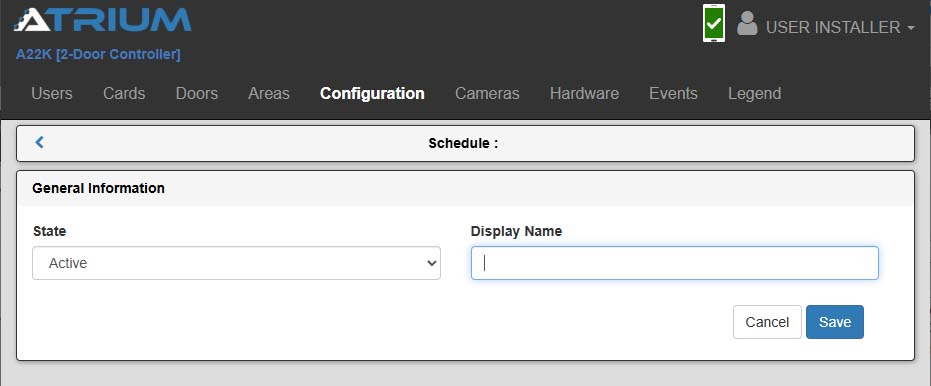
3. Enter a name for the Schedule then select the Save Button. The Display Name you choose should help identify what the schedule. For this example we are naming the schedule MF 9-5.
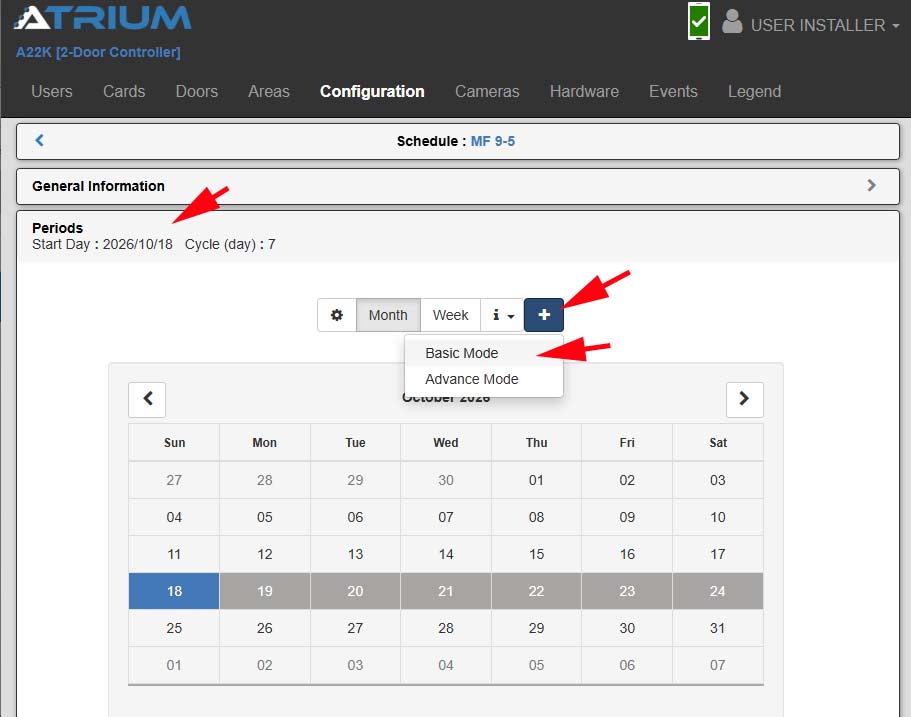
4. Select the Periods Tab to expand the panel
5. Select the plus (+) icon, then select Basic Mode
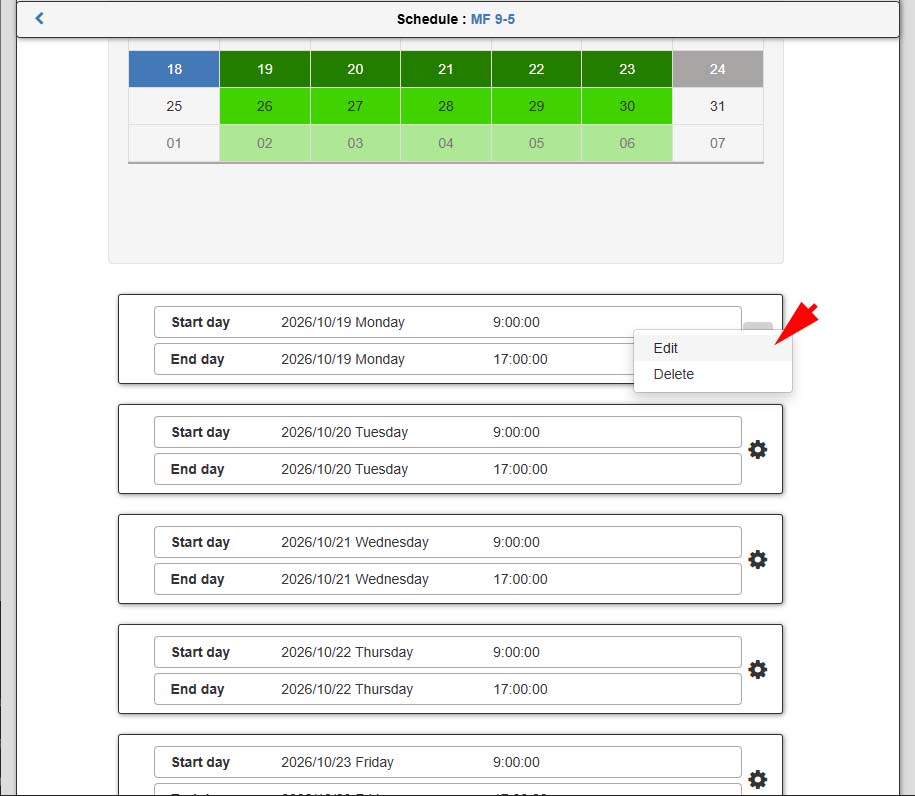
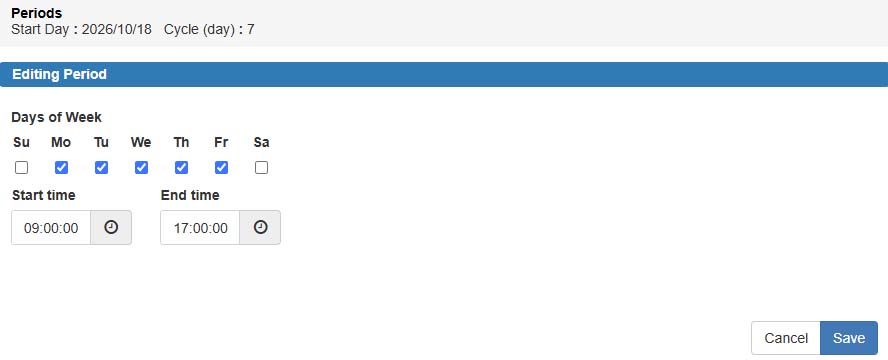
6. Select the days of the week then enter the start time and stop time, then Save
Note you can create multiple day and time entries for this schedule. For example, you can select Monday through Friday 9am to 5pm and Saturday and Sunday 9am to 12pm. To accomplish this, first select Monday through Friday and enter the start time as 9am and stop time as 5pm (1700) then click the Save button. You can then click the (+) icon again and select Basic Mode to create a second entry with 9am to 12pm for Saturday and Sunday.
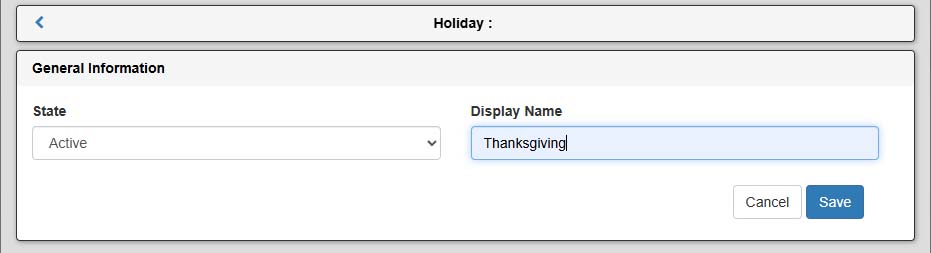
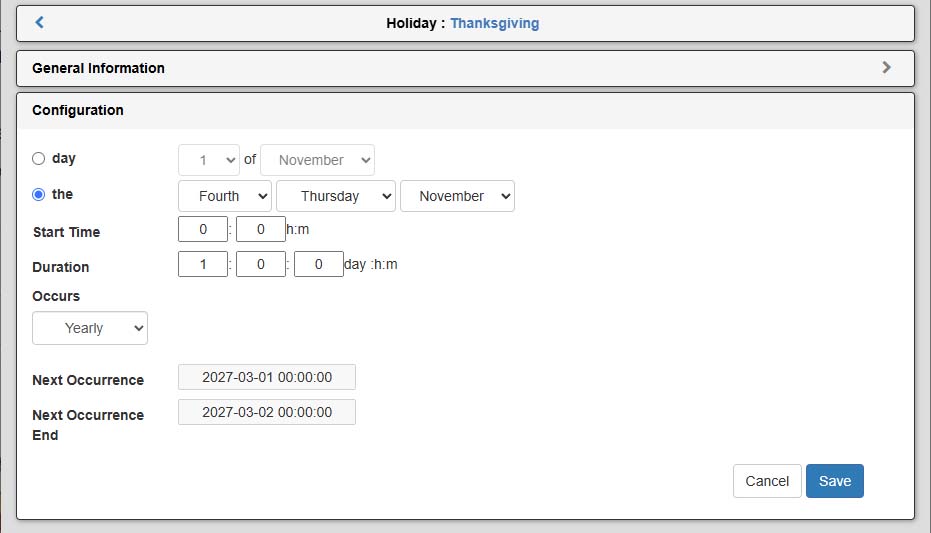
7. To assign holidays click the Holidays tab to expand the panel
8. Select the Assign button under the Excluded group
Note excluded means an exception to the schedule. For example, you may not want employees to have access to the building on days the building was closed.
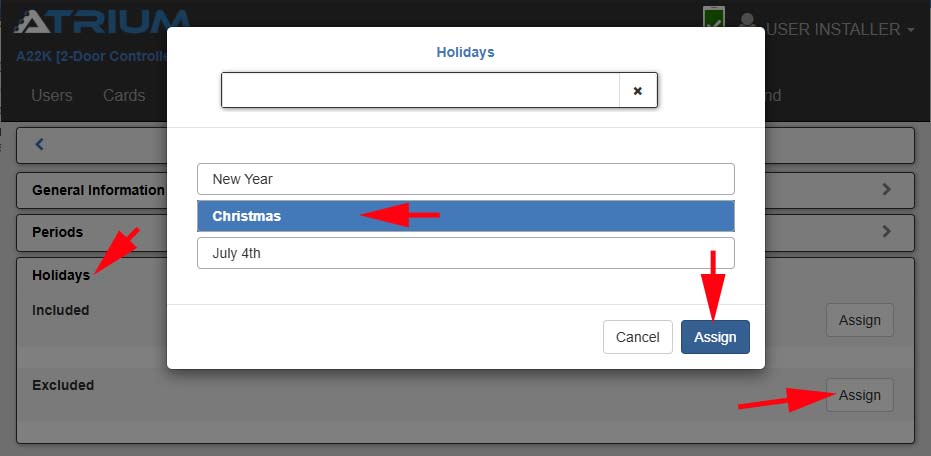
9. Select a holiday then click Assign
10. Repeat steps 8 and 9 for each additional holiday you want to add