Create an Access Level
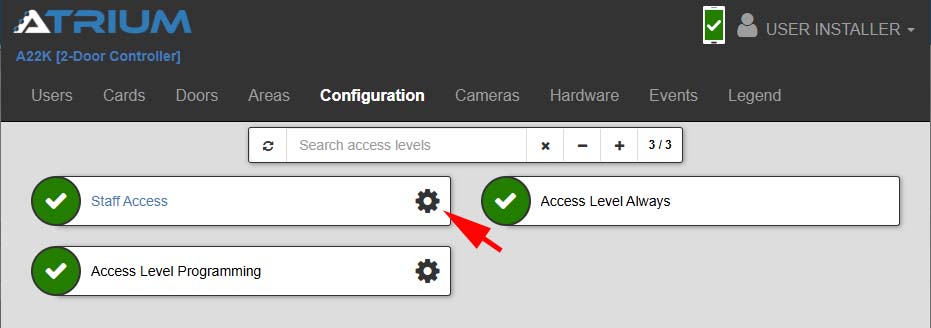
1. Select Configuration, then Access Levels from the main menu
2. Select the + icon to add a new Access Level
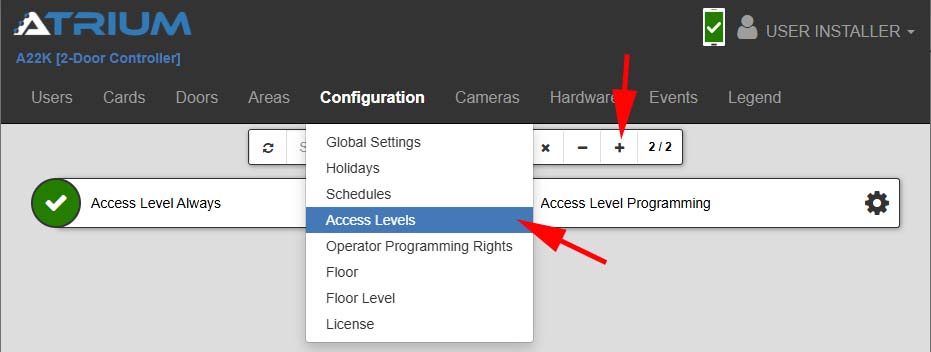
3. Enter a Display Name that describes what the access level represents. Then select Save.
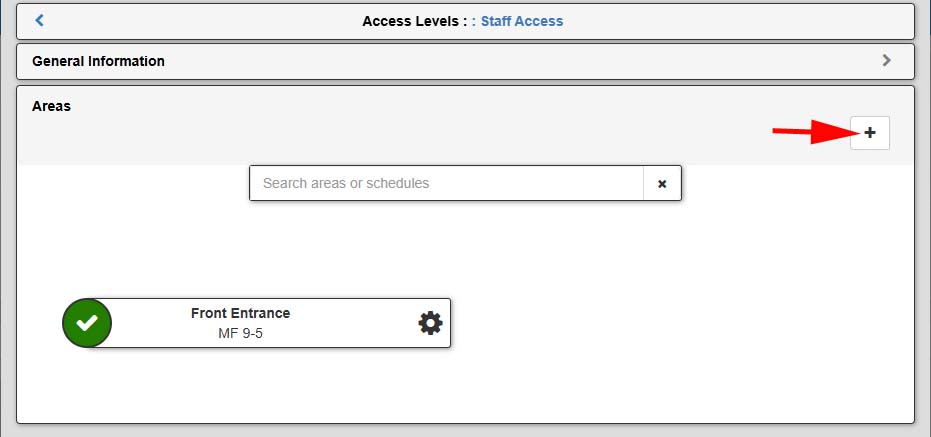
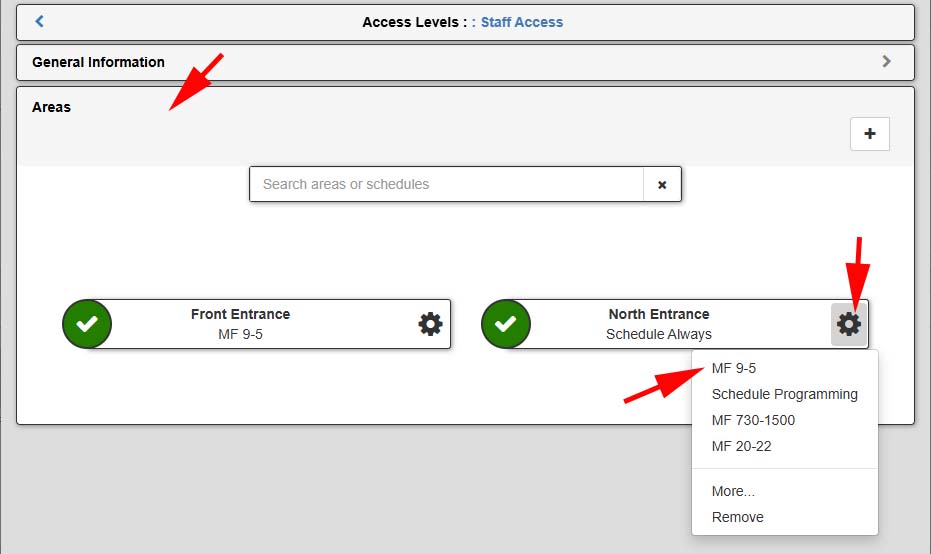
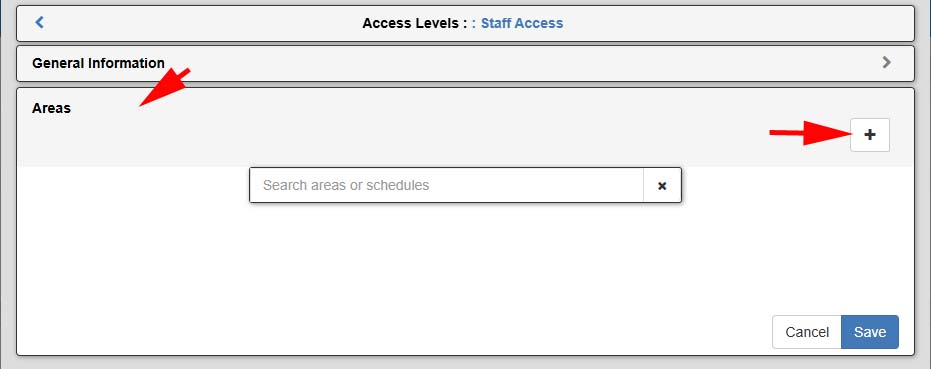
4. Select the Areas tab to expand the section
5. Click the + icon to add an Area
Note that Areas represent the areas of the building that Doors allow access to. In most configurations, Areas will be set up the same as doors and will be synonymous with Doors.
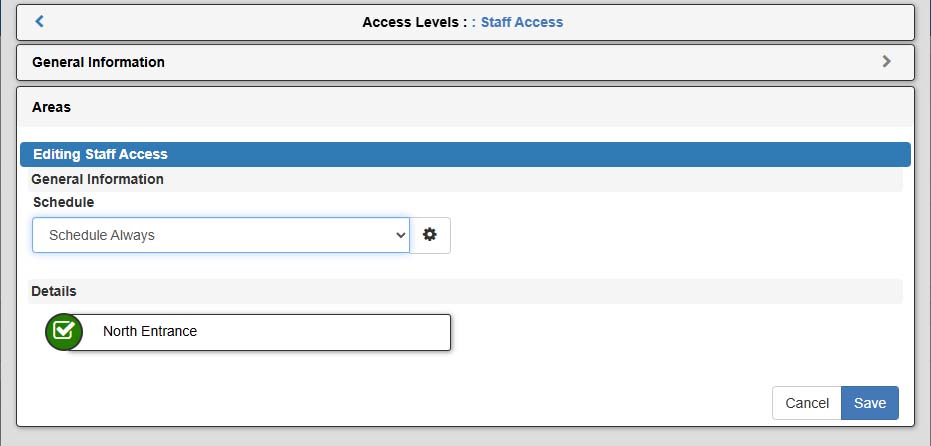
6. Select the Schedule from the drop-down menu
7. Select the area(s) (doors) that you want to allow access during this schedule, then select Save
Note that this access level will be later assigned to a card holder to allow access to the selected doors during the schedule selected here. People (cardholders) are assigned access levels and these levels determine access and schedules.
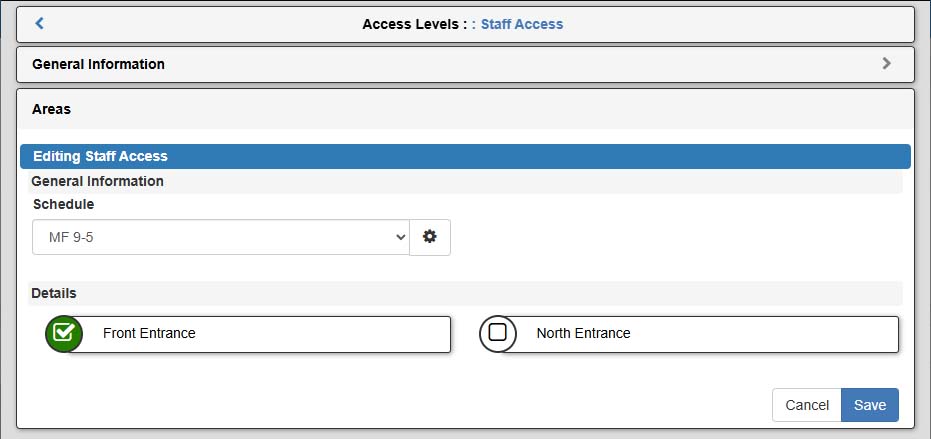
8. To add another schedule to other Area(s) (doors), select the + icon, then repeat steps 6 and 7